Portal guide
BackThe client portal is where you follow your tax cases, report payments of slips and send the documents the office asks for.
First time: the invitation QR code
- The office sends you a QR code or invitation link.
- Scan the QR code with your phone camera (or open the link).
- Choose a username (English letters and digits) and a password (at least 8 characters with a letter and a digit), then press Save and sign in.
Next times
Open the portal address and sign in with your username and password. If the office allows it, there is also an SMS code tab: enter your mobile and a 6-digit code is texted to you.
After 30 minutes without activity you are signed out for safety and sign in again.
Contact of several companies
If you are the contact of more than one company, their names are at the top of the portal's first page. Press a company to see its cases, slips and tasks; the red number is your open tasks there. The same username and password work for all of them.

My tasks
Tasks the office sends you (pay a slip, send a document, follow up a penalty forgiveness request with its file) are on the portal's first page under "My tasks". Send a message or file, and press "Done" when finished. A payment request shows its payment details there; Record the payment opens the payment form, where you attach the documents.

Home page: a warning if a slip is unpaid, the documents the office asked for with their due dates, and all your cases with their current stage.
Case page: assessed amount, final amount, paid and remaining; payment slips; the case history with the date of each stage; messages the office shared with you; shared documents.
My tasks
My tasks lists what the office asked you to do, e.g. pay a payment request (with Record the payment), send a document or follow up the penalty forgiveness request (with its tracking code). Reply, send a file or press Done. The follow-up closes by itself when the office records the decision.
- The office issues a payment request. If it asked you to pay it, it shows in My tasks on the portal's first page: the amount to pay, payment ID, issue date, deadline and the slip file.
- Press Record the payment to open the form, and attach the payment documents there. (The same form is under each slip on the case page.) If you paid in several parts or by several methods (internet, bank slip, cheque), add a row for each part with Add part.
- For each part enter the method, amount, reference or cheque number and date; for a cheque also the bank and cheque date. Choose the photo of the receipt or cheque. Large phone photos are shrunk automatically before sending.
- The total of the parts is shown at the bottom. Press Record the payment.
- Each part is "waiting for the office" until the office confirms it.

There are two ways to send documents to the office:
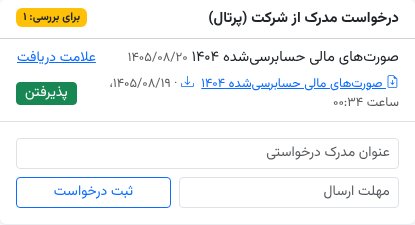
Documents the office asked for
They appear on the portal home page with their due date and a send button. Choose the file and press Send.Any file on a case
At the bottom of a case page, under Documents, send a file with a title, e.g. a notice you received yourself.Allowed: PDF, JPG, PNG and WebP up to 10 MB. The real file type is checked and files are stored encrypted.
What the office does next
The case owner gets a notification and a "Document review" task. A file sent for a company request is listed under that request on the client page, with open and download links; a case file goes to the case attachments. When the office presses Accept, the request becomes "received" and the task closes.
The portal installs like an app and opens full screen; no app store needed.
- Android: open the portal in Chrome → menu ⋮ → Install app or Add to Home screen.
- iPhone: open it in Safari → Share → Add to Home Screen.
On the portal home page, under Get the office's notices, press Connect next to Telegram or Bale (or scan its QR code) and press Start in the messenger. From then on document requests, new slips and the office's messages are sent to you there. Press Disconnect any time.
If the office uses WhatsApp, notices also go to your registered mobile number on WhatsApp.
| Question | Answer |
|---|---|
| I forgot my password | Ask the office for a new invitation QR code. |
| No SMS code arrives | Sign in with username and password; the SMS code only works when the office has SMS set up. If you asked 3 times in 15 minutes, wait a little. |
| I don't see a case | Cases still in draft are not shown; they appear once the first stage is recorded. |
| Dates are Gregorian | Dates follow your company's country of registration. |
| I was signed out | After 30 minutes without activity the portal signs you out for safety. Sign in again. |
| The receipt photo is large | Large phone photos are shrunk automatically before sending. |
| New phone | Just sign in with the same username and password. |
© 2026 hadiSoft